The first draft looked finished: a phone framed against the right colour, a clear headline above it, and the app’s best feature on screen. Then the app changed. A button moved, the team wanted a shorter headline, and a translation pushed the text onto a third line.
None of those changes should mean starting again. The useful question when choosing an AI App Store screenshot generator is not just how quickly it produces an image. It is what you can still change afterwards.
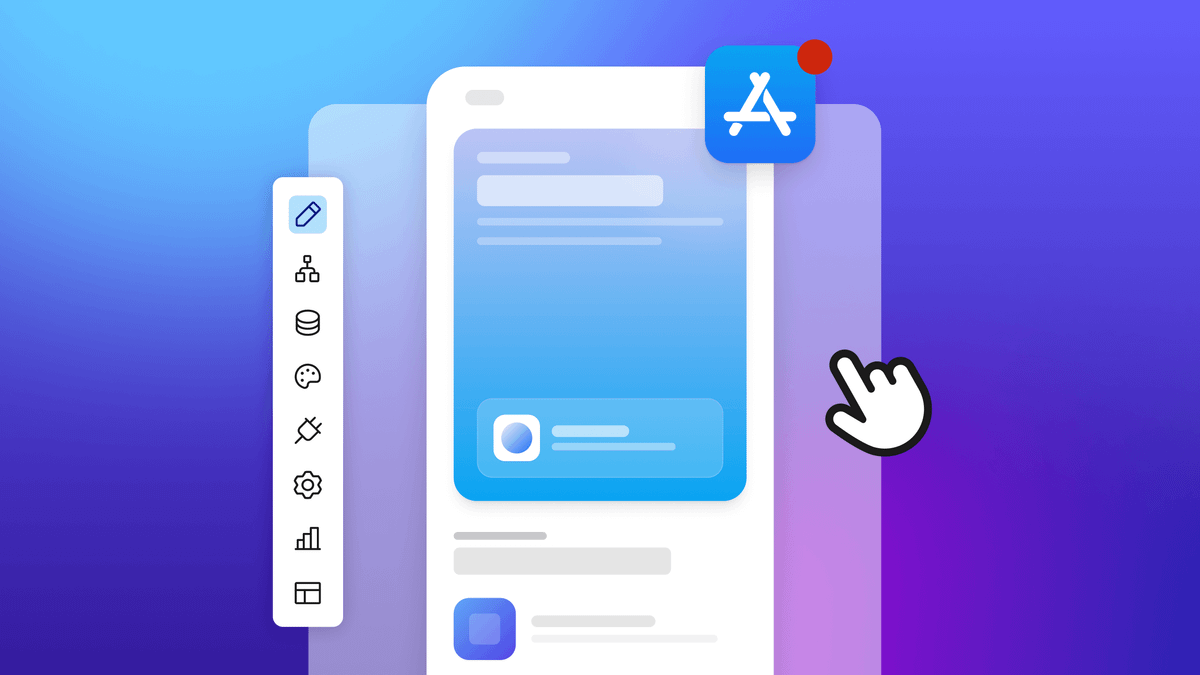
AppScreens is the MCP for App Store and Google Play screenshots. It gives compatible AI agents a way to turn real app captures into editable screenshot designs, revise captions and layouts, and show previews for review. The same project opens in the AppScreens editor, so a developer, designer or marketer can keep working on it directly.
Start with guided AI in the browser or work with a connected agent. Choose a template or start from scratch, add your screens, refine the captions and export the sizes you need. AppScreens is free to start with one project and up to five screenshots at essential sizes, enough to create a basic set and upload it to the stores yourself. Paid plans add agent exports, localization and approved direct store uploads. More than 149,000 app professionals have used AppScreens to create over 12 million screenshots.
That matters whether you need a launch set today or expect to return to it every release. The output is a finished image for the store. The project behind it stays available for the next change.
A store screenshot has two jobs
A visitor is deciding whether an app is worth trying. The image needs to show enough of the interface to make the product credible and explain a benefit quickly enough to earn a closer look.
A raw capture does the first job, but often leaves the second unfinished. A screen full of recipes tells someone what the app looks like. A headline such as “Every recipe you love, one place” explains why the collection matters. Together, the headline and the screen tell a clearer story than either does alone.
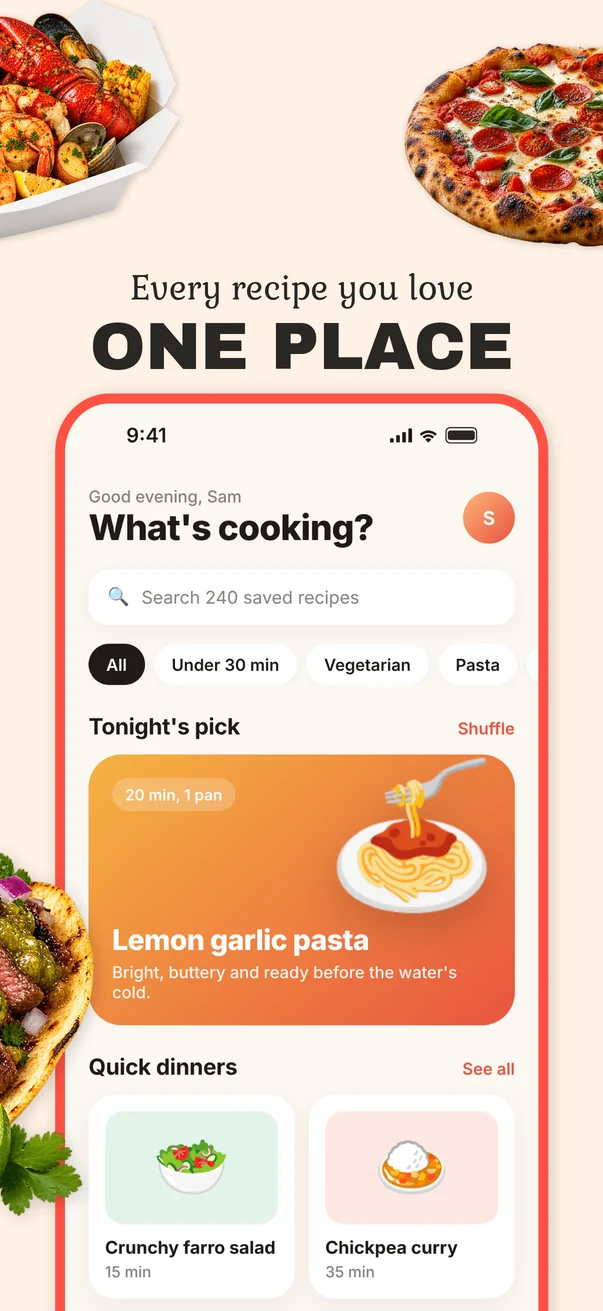
This AppScreens example pairs a recipe app’s home screen with a benefit-led headline. The app interface remains the evidence for the claim.
AI is useful for drafting those headlines and exploring visual directions. It is less useful when it invents the product it is supposed to explain. An image model can redraw a convincing interface while quietly changing a label, inventing a control or placing the wrong information on the screen. For a store listing, the app should be shown as it really works. Use real captures for the interface and use the design around them to make its value easier to understand.
Editable source, finished export
A flattened PNG is a perfectly good final delivery file. The problem is having only the PNG when something changes. If the headline, phone and app screen are baked into one image, a minor change can mean returning to the original designer or reconstructing the layout.
An editable project keeps the useful pieces available separately: the app capture, text, device frame, background and other design elements. A product manager can fix a caption without redrawing a phone; a designer can replace a capture without rebuilding the headline. Once the changes are approved, export a new set of finished images.
When comparing screenshot tools, look beyond the first preview and ask:
- Can I edit the headline as text, rather than regenerate the image to change one word?
- Can I replace the app capture while retaining the surrounding layout?
- Can I review the design at the sizes and languages I intend to ship?
- Can I return to the project for the next update or a different marketing message?
AppScreens is built around that whole job. It combines app context, AI caption suggestions, templates and an editor with store-sized exports, localized projects and upload workflows. You do not need to build the first set in a general design tool before getting a useful result.
Start with a story, not a template
A template solves the empty-canvas problem; it does not decide what your visitor needs to know. Before choosing colours, write down the three strongest reasons someone would install the app. Match each reason to a real screen that can support it.
For a recipe app, the first screenshot might show a collection with “Every recipe you love, one place.” The next might show the cooking view with a promise about following steps, and another might show the weekly planner. Each page has a job, and the set tells a story rather than repeating the app name three times.
The same approach works for a first release. Search for the app or enter its details during AppScreens’ AI onboarding, choose or refine the suggested captions, and select a template. Add the captures, adjust the type and colours, and preview the set before exporting. A developer who needs five screenshots for launch can finish the immediate task without setting up a large design workflow.
Choose a ready-made template for speed, or start from scratch when the brand needs more control. Either way, check the result at the scale customers will actually see. A headline that looks elegant on a desktop monitor can become hard to read beside a full phone screen.
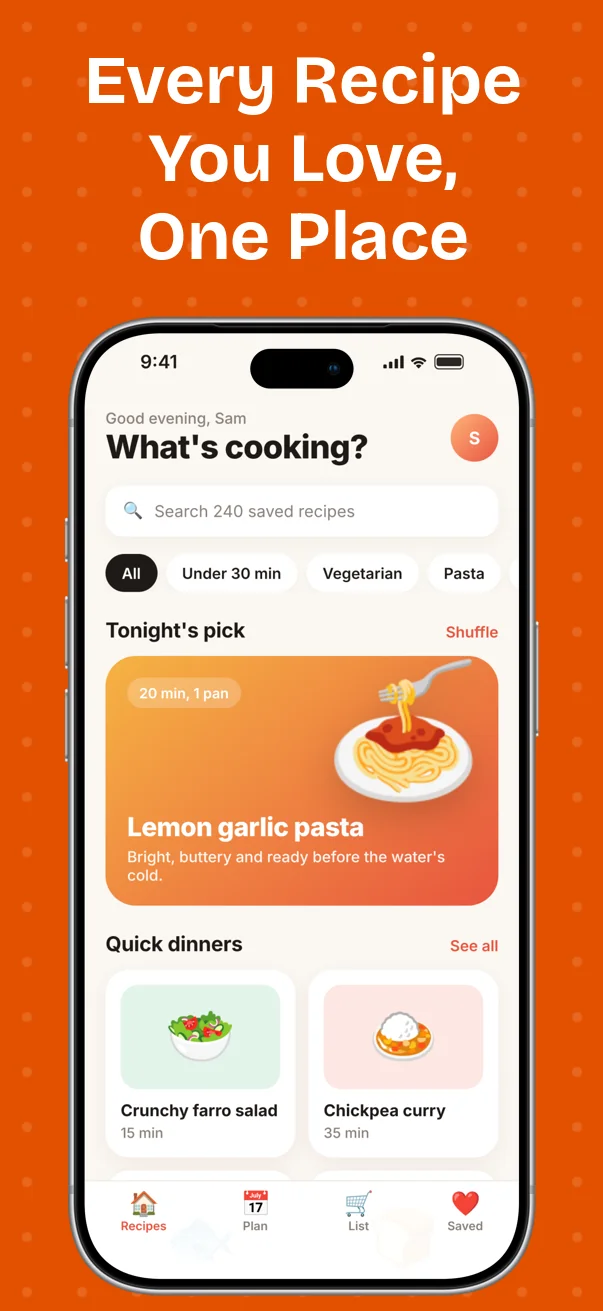
The same recipe app capture works in a different visual treatment. The headline, frame and background can be refined around the product screen.
Make future edits cheap enough to do
The value of an editable project becomes obvious when a release changes one screen. Suppose a budgeting app moves its spending summary to a new dashboard. Capture the current dashboard, replace the old image, and check whether the caption still makes sense. The alternative is leaving an outdated store page in place or recreating artwork for a change that should have been small.
The same applies to brand work. A designer may want to adjust the type scale across a set, move a caption away from a busy part of the screen or make a button on the captured interface easier to see. Those are specific design decisions, not reasons to ask AI to generate a completely different phone every time.
With AppScreens MCP, the AI agent can work on the screenshot project itself. Ask it to revise a headline, update a screen or prepare a localization, then review the preview together. The same editable project is available in the AppScreens editor when a designer wants to fine-tune the result. Paid plans extend the workflow to agent exports and approved store delivery.
That makes AppScreens practical at both ends of a release. Use the browser to make a quick first set, or bring the connected agent back when the app, caption or market changes. The team checks the screen and approves the result before delivery.
Localization changes the layout as well as the words
A translation can be correct and still fail as a screenshot. It might wrap into four lines, crowd the device, or sit above an interface that remains in another language. Review the complete image, not just a spreadsheet of translated captions.
Where the app itself is localized, use the matching app capture for each language. If a particular screen is not translated, make a conscious decision about what the visitor will see rather than assuming the caption has solved the problem. Check right-to-left layouts and longer text at the actual export sizes.
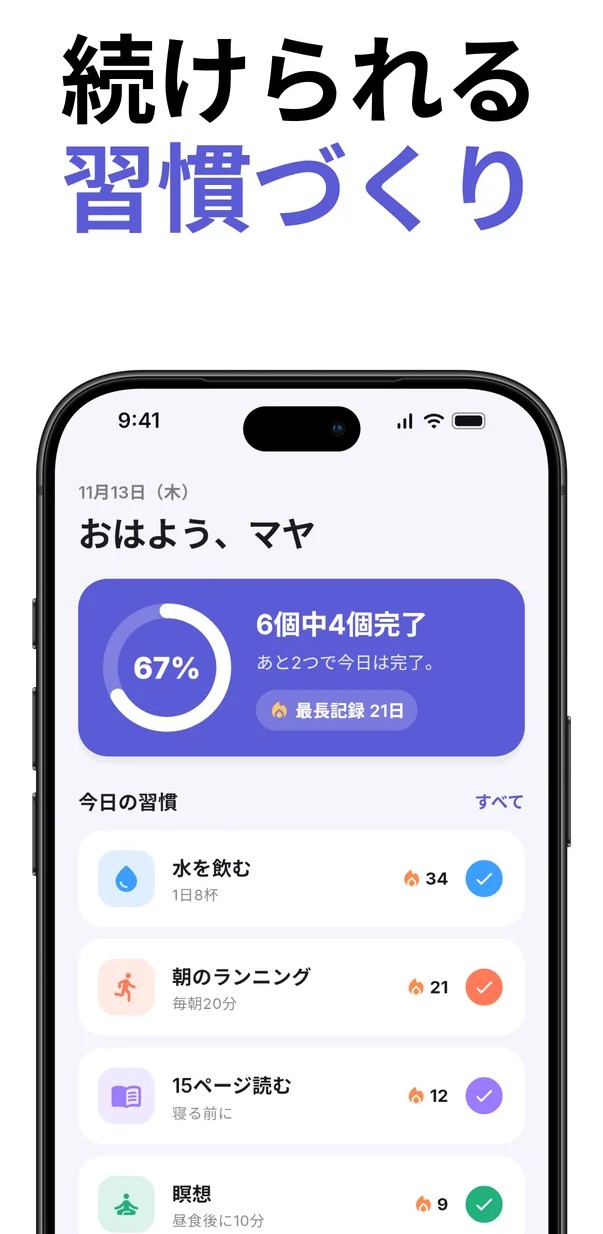
The Japanese caption and the interface inside the phone tell the same story in the same language.
AppScreens supports localized captions and language-specific captures within a project. Automatic translation is part of its paid workflow; it gives a team a starting point, while a fluent reviewer checks meaning and fit. Keeping the project editable makes it practical to correct a single market without rebuilding every design.
Use variants to learn, not just to decorate
A visual refresh is a hypothesis. Perhaps visitors respond better to “Know what’s for dinner” than “Plan meals in minutes.” Perhaps the collection screen is a stronger first impression than the planner. Those are different questions, so test them separately when possible.
Start with a clear change, prepare the variant and preview the rest of the set for consistency. Apple Product Page Optimization and Google Play store listing experiments can show versions to store visitors and report results. The available audience and reporting differ between the stores, so use each console’s guidance and give the test enough traffic before drawing conclusions.
Editing makes testing easier to act on. If the clearer caption wins, keep it; if the result is inconclusive, the original is still there. When the next release changes the interface, update the capture and review the message again. A screenshot set is part of the product’s presentation, and it should be as maintainable as the product it describes.
Frequently asked questions
Can AI make App Store and Google Play screenshots?
Yes. AppScreens turns real app captures into editable App Store and Google Play screenshots using guided AI or compatible MCP agents. Choose a template or start from scratch, refine the captions and design, preview the set, then export store-sized images.
Are editable screenshots still exported as PNG files?
Yes. The store receives finished image files, while the source project remains editable. In AppScreens, you can change a caption or replace a capture and export a revised set.
Can I make a screenshot set for free?
Yes. AppScreens is free to start with one project and up to five screenshots at essential sizes. Export a basic set from the browser editor, then upload the files to App Store Connect or Google Play yourself.
Can an AI agent update an existing design?
Yes. AppScreens MCP connects compatible AI agents to editable App Store and Google Play screenshot projects. Ask the agent to update captions or layouts and show a preview, then review the result or continue editing in AppScreens.
What should I check before uploading?
Check that the screen shows the current app, the headline matches its features, and each device size and language is readable. Review Apple’s current App Review Guidelines and Google Play’s preview asset guidance before uploading.

Flexibility, efficiency, and individual approach to each customer are the basic principles we are guided by in our work.
Our services